Adding Advanced Threat Protection (ATP) services
From this page, you can create and manage configurations to integrate with vendors for advanced threat protection. CASB supports Juniper ATP Cloud and FireEye ATP services.
-
From the Enterprise Integration page, choose Threat Management.
-
To display details of a configuration, click the > arrow to the left for that configuration.
To add a new configuration for threat management:
-
Click New.
-
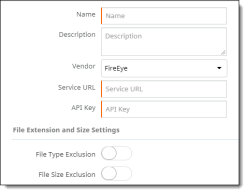
Enter the following information. Fields with a colored border at the left require a value.
-
Name -- The name of the service. The name you enter here will appear in the dropdown list of available external services when you create a policy that scans for malware.
-
Description (optional) -- Enter a description of the service.
-
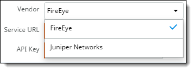
Vendor -- Select a vendor from the list, either FireEye or Juniper Networks (Juniper ATP Cloud).
-
Service URL -- Enter the URL of the service for this configuration.
-
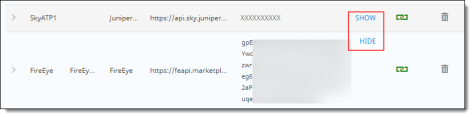
API key -- Enter the API key provided by the service. You can opt to show or hide this key. When the key is hidden, Xs appear for the entry.
-
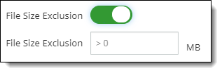
If you want to exclude file sizes and extensions from scanning by this service, click the File Type Exclusion and File Size Exclusion toggles to enable these settings. Then, enter the following information.
-
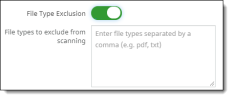
For File Type Exclusion, enter types of files to be excluded from scanning. Separate each type with a comma.
-
For File Size Exclusion, enter a number greater than zero that represents the upper file size threshold for scanning. Files larger than this size will not be scanned.
-
Click Save.
The new configuration is added to the list. A successful connection is indicated by a green connector icon.
